Sunday, 2 October 2011

More Iron Man Stuffs!!

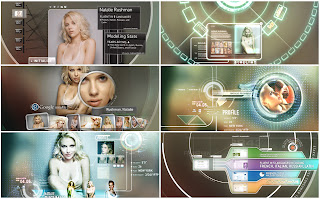
While just surfing the Internet I just found out more of the Stuff related to the Iron Man Interfaces..!!! Here it is..
Here are some links
-http://prologue.com/
-http://perceptionnyc.com/node/68
-http://www.thefront.com/showreels.php?view=17


The Pics


And the last here are the videos...


Will post more If I find something else...Bye for now.!! :) enjoy!

Sunday, 18 September 2011

Running Gwibber and Empathy on Startup

Most of the technical people now a days want to be up-to-date with the latest news and every computer guy is depend on his/her system for it. Social Networking has invaded everything in life. Even if you don't like opening the websites of the News channels to get the news you can just open any of these social networking sites and read the news.
Now, I am kind of guy who wants everything in the internet in my desktop. So I like the applications like Gwibber and Empathy. I want everything to be opened as soon as I open my Laptop. So while searching I just found a way to do that on OMG! Ubuntu! :)
Now the steps:
  1. Now open Gwibber and goto Edit>Preferences(Ctrl+P)
  2. You will find and option in the Options tab>Start service at login
  3. Just check it and you are done!
Now with Empathy
  1. Open your System Settings( In ubuntu 11.04>Click on power button on the top right corner and see the last option)
  2. Write 'start' without the quotes in the filter field and on the right side you will se a option StartUp Applications. Open It by clicking.
  3. You will see list of losts of applications. These are the applications which are automatically opened on login.
  4. Now we have to add Emapthy. So Click on the Add Button and fill the following details
  5. Name: Empathy
  6. Command: empathy -h
  7. Done!
Now you will be online and will be watching all the news updates on desktop as soon as you login. :))

Monday, 25 July 2011

Indian Railway Searcher and Tracer!

After lots of hesitation I have finally started posting one of the small projects made in AutoIT.  This one was made by me last year. Now How it works??
  1. Firstly enter Name Or Number of the train in the Input box. Then click On Search.
  2. After the loading is complete it will show the trains with matching name or if you have entered train number then it will show you only one train.
  3. Then select your train and then click on GET IT
  4. After the loading is complete it will show you the Schedule and Current Position of the train.
The loading may take some time depending on your Internet Connection.
Requirements:Microsoft Windows with IE 7+, An Internet Connection :P
Enjoy!!
Here is the link to download it: Download
If you have any suggestion or complaint do tell me!!
Just post a comment!! I'll there! :)